
You’re about to spend more than you need to. That’s the most common mistake I see from people buying their first drawing tablet: they read a spec sheet, get talked into a screen or an iPad, and drop $500 on hardware before they’ve drawn a single decent line.
Here’s the honest steer, up front. For most beginners, the right answer is a screenless pen tablet in the $30 to $70 range, plugged into the computer you already own. Everything past that – a screen, a standalone device, the iPad-and-Apple-Pencil setup half the internet swears by – is a step you buy into after you know you’re sticking with this, not before.
So this isn’t a spec-sheet leaderboard. It’s a set of honest picks by use case, one clear “skip it” call, and the one decision that actually matters before you look at a single model.
First, the only decision that actually matters: screen or no screen?
Skip the brand war for a second. Before Wacom vs XP-Pen vs Huion means anything, you have to pick a type, and picking the wrong type is the costliest beginner mistake there is.
Pen tablet (screenless)
You draw on a flat pad and watch the result on your monitor. It’s cheap – beginner models run around $30 to $70 – it’s durable, it’s portable, and it plugs into any computer. The catch is the hand-eye disconnect: your hand is here, the cursor is over there. It feels weird for about a week, and then your brain rewires and you stop noticing. Every serious artist who started on one will tell you the same thing.
Pen display (screen)
You draw directly on the screen, so what you see is what your hand does. Intuitive from minute one. The downside is money – a decent 12 to 13-inch beginner display starts around $200 – plus posture, because you’re now hunched over a lit panel instead of looking up at a monitor. A screen removes the learning curve you’d have gotten over anyway, and charges you for the privilege.
Standalone (its own computer)
The iPad category: no PC needed, everything runs on the device. It’s the most convenient and by a wide margin the most expensive path, and it comes with software strings I’ll get to. It’s a whole computer’s worth of hardware to solve a drawing problem.
The verdict: if you’re genuinely just starting, buy screenless. You’ll save hundreds, you’ll learn the fundamental skill either way, and you can move up to a screen later once you actually know you want one. Now the picks.
Best overall for most beginners: XP-Pen Deco 01 V3
This is the one I’d hand a friend who asked. Around $35 to $48, and it out-specs tablets twice its price on paper – not that the paper matters much, which is a theme here.
You get a generous 10 x 6.25-inch active area, which is the real reason to pick it: more room means bigger, looser arm movements instead of cramped wrist-only strokes. The stylus is battery-free EMR – never charge it, never replace a battery – with 60 degrees of tilt and a slim 8mm body. It’s rated at 16,384 pressure levels, and here’s the honest bit: at beginner level you will not feel the difference between that and a tablet at half the number. The spec is marketing. The active area is not.
Buy it if: you want the most usable space and the most forgiving all-rounder for under $50.
Skip it if: your desk is genuinely tiny, or you want the smoothest driver software on day one – Wacom still edges it there.
Tightest budget: Huion Inspiroy H640P
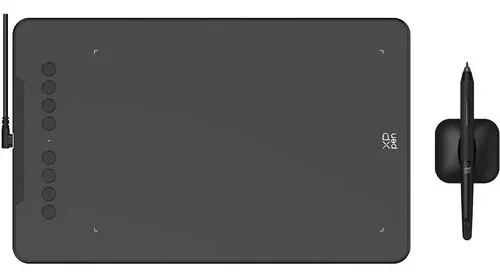
If money is the only thing standing between you and starting, this removes the excuse. It’s around $30 – roughly the cost of two nice sketchbooks – and it’s a real tablet, not a toy.
Pressure sits at 8,192 levels, half the Deco’s number on paper and identically irrelevant in practice. The stylus is battery-free again, which at this price is genuinely surprising. The compromises are honest: the active area is small, so you’re working wrist-first rather than arm-first, and some units want a touch more force to register a light line. For learning line confidence and testing whether digital art is even your thing, none of that is a dealbreaker.
Buy it if: you want the absolute cheapest way to find out whether you’ll stick with this.
Skip it if: you already know you’re serious – spend the extra fifteen dollars on the Deco’s bigger drawing area and don’t look back.
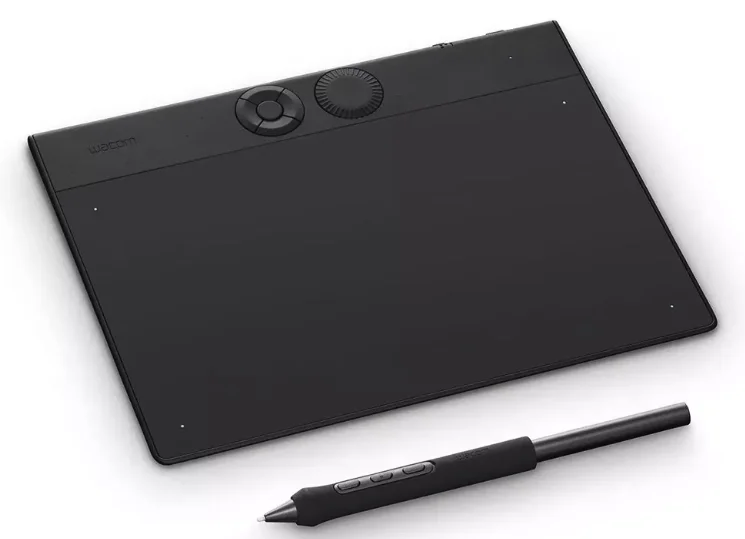
The no-drama classic: Wacom Intuos Small
Wacom is the name everyone recognizes, and the Intuos Small is its entry point – around $40 wired, roughly $80 for the Bluetooth version, with some listings creeping toward $97. You’re paying a premium, and you should know exactly what it buys you.
On specs, it looks worse: 4,096 pressure levels, a smaller active area, a higher price than tablets that beat it on numbers. Ignore the numbers. What Wacom actually sells is the boring, valuable stuff – drivers that just work across updates, a pen feel that’s been refined for two decades, and the confidence that a tutorial or a forum thread assumes you own one. For people who hate troubleshooting more than they hate spending, that’s worth real money.
Buy it if: you want zero software headaches and value reliability over raw specs and screen size.
Skip it if: you’re on a strict budget – you’re paying a brand tax for a smaller, lower-spec pad, and the Deco does more for less.
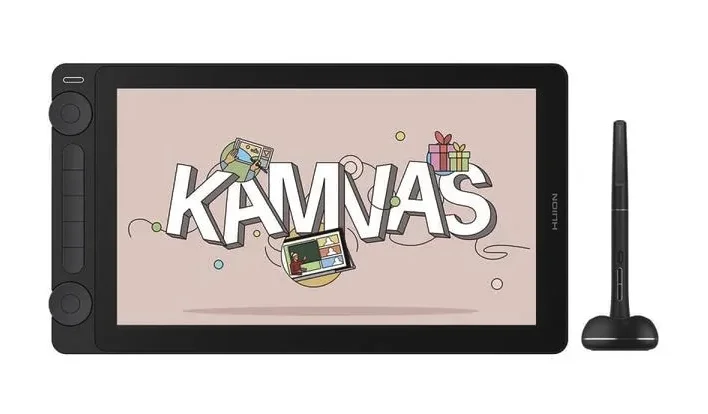
Best value with a screen: Huion Kamvas 13 (Gen 3)
If you’ve read all of the above and still want to draw on the screen, this is where I’d point you before anything Wacom-branded. Around $199 to $224, often on promo near the top of that range, and it punches well above the price.
You get a fully laminated 13-inch panel – lamination matters, because it closes the gap between the pen tip and the pixel so your line lands where you expect it. There’s Huion’s Canvas Glass 2.0 surface, 99% sRGB color coverage, PenTech 4.0 rated at 16,384 pressure levels, a dual dial for shortcuts, and a built-in stand. It works with PC, Mac, and Android, so an old phone can double as a portable canvas. For half the price of the premium option, the compromises are hard to find at this level.
Buy it if: you specifically want a screen, want it soon, and don’t want to spend $500 to get one.
Skip it if: you haven’t drawn digitally at all yet – buy a $40 screenless pad first and prove you’ll use it.
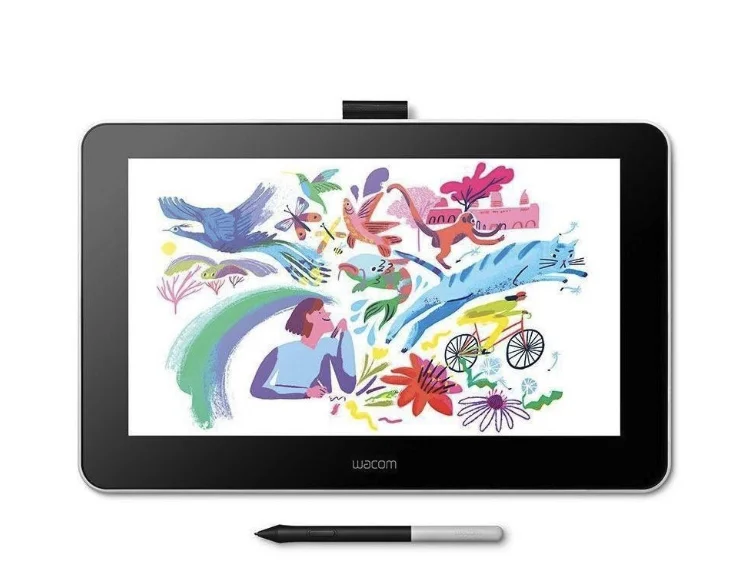
The premium screen pick, and whether it’s worth it: Wacom One 13 Touch
The nicest beginner-friendly display here, and the one whose price I’d push back on hardest. Around $500 new – more than double the Kamvas 13 – for a genuinely lovely piece of kit.
The panel is a 13.3-inch 1920×1080 laminated touchscreen with a 11.6 x 6.5-inch drawing area, 99% sRGB, 320 nits of brightness, and 2000:1 contrast. It runs off a single USB-C cable, which is a real quality-of-life win, and the pen feels superb. Then you check the spec that’s supposed to justify the price and find 4,096 pressure levels – the same as the $40 Intuos, a quarter of the Kamvas. You’re not paying for performance here. You’re paying for polish, touch input, and the Wacom logo.
Buy it if: you want the most refined screen experience with cable simplicity and touch, and the price genuinely isn’t a factor.
Skip it if: you’re a beginner watching your budget – which, if you’re reading a beginner guide, you probably are. The Kamvas 13 gives you 90% of this for well under half the money.
Skip it if… the overhyped default: the iPad + Apple Pencil
Every “beginner tablet” thread eventually turns into someone insisting you just buy an iPad. I’m going to be the one who says: for most beginners, don’t – or at least, not yet.
To be fair, the iPad-and-Apple-Pencil combo isn’t bad. It’s fast, it’s portable, the pen is excellent, and Procreate is a genuinely great app. That’s exactly why it gets recommended into the ground. But it’s the expensive answer to a question most beginners haven’t earned the right to ask yet.
Two problems. First, cost: an iPad plus a Pencil runs you the price of a whole computer, to do a job your existing laptop already does with a $40 pad taped to your desk. Second, and bigger, is lock-in – Procreate is iPad-only and doesn’t exist on desktop, and iPad apps in general lack the depth of the desktop versions: fewer layer blend modes, no smart objects, weaker vector tooling. You can outgrow the software while the hardware still feels brand new.
It IS for you if: you want a single all-in-one device you can draw with on a train, you’re already deep in Apple’s ecosystem, and money isn’t the constraint.
Skip it if: you own a computer and you’re not certain digital art will stick. The cheap-tablet-plus-existing-computer path gives you full desktop software and costs a tenth as much. Buy the iPad later, if and when you know why you need it.
What about software? You probably don’t need to pay
Here’s the argument that makes the cheap-tablet path even stronger: the best beginner software is free, as long as you’re on a desktop.
Krita is open-source, genuinely full-featured, and built for painting and illustration – it’s not a stripped-down free tier, it’s a real tool. MediBang Paint is free too, with cloud sync that’s handy if you bounce between machines. And Clip Studio Paint, the industry favorite for comics and illustration, has a free trial before you decide to pay. Pair any of them with a $40 screenless tablet and you’ve got a complete setup for the price of dinner. That whole stack, by the way, is one more reason the desktop-first path beats the iPad’s Procreate lock-in – it’s the same logic we apply when we weigh up desktop creative software elsewhere on the site.
If you want to go deeper on the desktop side of the creative toolkit, browse our computers and gear reviews – it’s where we put every device and software verdict through the same honest test.
Wrap up: what to actually buy
No single tablet wins outright, because “best” depends entirely on where you are. So, plainly:
- Just testing the waters? The XP-Pen Deco 01 V3 (around $35 to $48) for the roomy drawing area, or the Huion Inspiroy H640P (around $30) if every dollar counts.
- Hate troubleshooting more than you hate spending? The Wacom Intuos Small – you’re paying a brand tax, but the drivers and pen feel are the smoothest here.
- You specifically want a screen and have the budget? The Huion Kamvas 13 Gen 3 (around $199 to $224) is the value pick; the Wacom One 13 Touch (around $500) is the premium one, worth it only if price truly isn’t a factor.
- Want portability and money’s no object? The iPad, eyes open to the software lock-in.
The through-line is the same one I opened with: the best drawing tablets for beginners are almost never the expensive ones. Buy small, buy screenless, plug it into what you already own, and spend the money you saved on the only thing that actually makes you better – hours at the pad.
Bookmark our reviews of the gear we’ve actually tested and check back before your next upgrade.
Frequently asked questions
Do I need a screen tablet to start drawing?
No. A screenless pen tablet – where you draw on a pad and watch your monitor – is the standard beginner starting point, and it’s far cheaper at roughly $30 to $70. The hand-eye disconnect feels strange for about a week, then your brain adapts. You learn the same skills either way.
How much should a beginner spend on a drawing tablet?
Around $30 to $70 for a screenless pen tablet is plenty to start, and it’s what most beginners actually need. A decent beginner pen display with a screen begins near $200. Anything above that – premium screens or an iPad setup – is a step up you buy later, once you know you’ll stick with it.
Do drawing tablets come with software?
Not always meaningful bundles, but you don’t need to pay anyway. On desktop, Krita is free and fully featured, MediBang Paint is free with cloud sync, and Clip Studio Paint offers a free trial. A cheap screenless tablet plus free desktop software is a complete beginner setup for very little money.
Is Wacom still worth it in 2026?
Yes, but for reliability rather than specs. A Wacom Intuos costs more and shows fewer pressure levels than rivals, yet its drivers and pen feel are the most trouble-free here. If you’d rather never fight your software, it’s worth the premium. If you’re on a strict budget, XP-Pen and Huion do more for less.
Can you draw without a computer?
Yes, with a standalone device like an iPad – it runs everything on-device, no PC required. That’s the convenience the category sells. The tradeoffs are cost and software lock-in: Procreate is iPad-only, and its apps lack desktop depth. Screenless and screen tablets, by contrast, always need a computer to run.
Does pressure sensitivity (16K vs 8K) actually matter for beginners?
Barely. Tablets advertise 8,192 or 16,384 pressure levels, but at beginner level you won’t feel the difference between them. It’s a spec race that reads well on a box and changes almost nothing in practice. Prioritize active drawing-area size and driver reliability instead – those you’ll notice every session.
Is the iPad worth it for a beginner artist?
Usually not first. It’s excellent but expensive – an iPad plus Apple Pencil costs about what a whole computer does – and it locks you into iPad-only apps like Procreate, without the depth of desktop software. If you own a computer, a $40 screenless tablet plus free desktop apps does the job for a fraction of the price.
Wacom vs XP-Pen vs Huion – which is best for beginners?
None wins outright. XP-Pen (the Deco 01 V3) offers the best all-round value and drawing area; Huion (the Inspiroy H640P) is the cheapest entry and the strongest screen value in the Kamvas 13; Wacom (the Intuos) charges more but has the smoothest drivers. The old “Wacom is priciest” ladder no longer holds in 2026 – check current promos.